 Isaac Bythewood
Chromium for a long time has provided a CLI for capturing web screenshots. I've found myself recently needing a to do a lot of this.
To start my script I import my deps, find Chromium, and setup my base command. I've found that Chromium can be under two different names, chromium and chromium-browser, depending on your container OS so the path check helps with that.
This example also makes use of Django's default_storage functionality to store files in the proper location making this work with a variety of different storage options.
Note that I do use Chromium in a Docker container for this so I have a flag that disables Chromium sandboxing since that's the current recommended way of running Chromium inside Docker. You should absolutely remove this flag if you aren't running Chromium in a container.
I then make two helper functions for saving images to storage and running our Chromium command, you can modify this to save to the OS directly if you don't want to use Django's storage system.
Then create our two main functions for generating the actual screenshots, one for generating from a URL and one from generating from HTML directly. You'll also need to modify these slightly if you don't want to use Django's storage system.
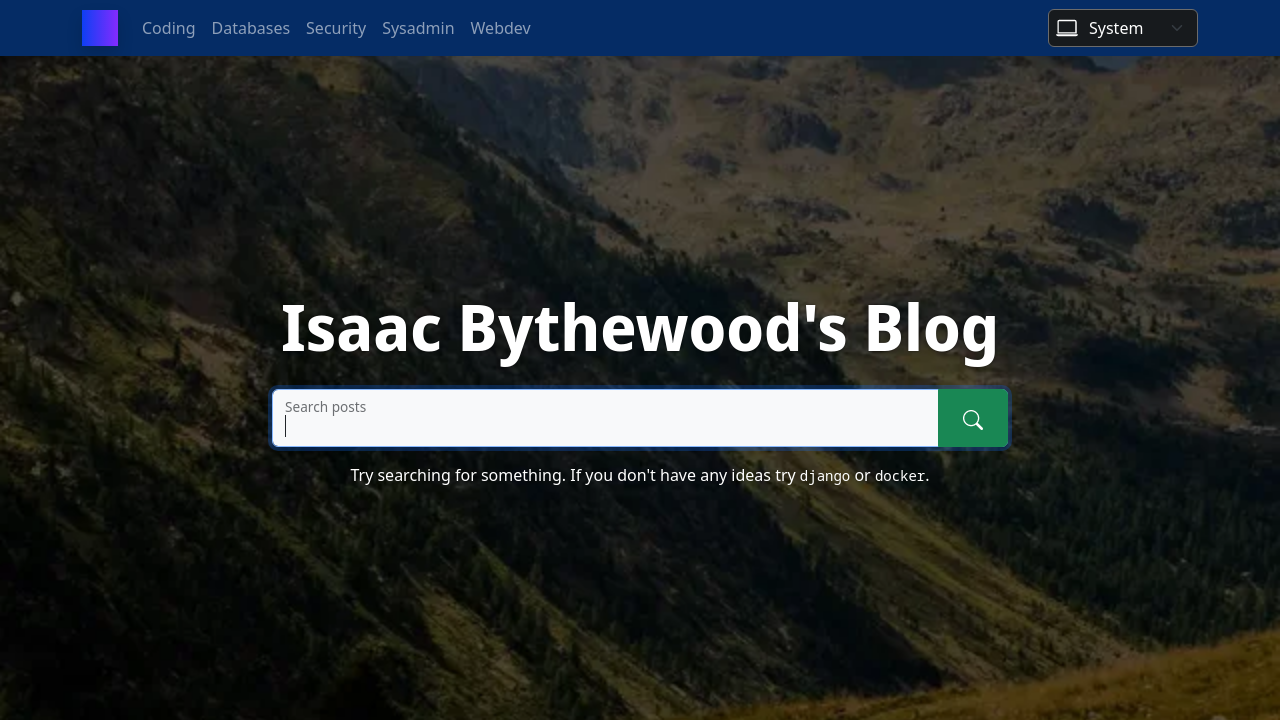
You can now import these two functions anywhere you want to create a screenshot. As a quick example if you wanted to take a screenshot of my blog you'd run:
As a bonus if you wanted to generate a PDF you can add another function to do this very easily since Chromium supports CLI PDF generation.
You'd run this the exact same way as the generate_screenshot_from_url function.
That's all you need to generate screenshots and PDFs! I've found this to be much more consistent than using the various screenshot and PDF libraries available for Python, you also have a lot of control over Chromium with its many CLI switches.